
Flex Box Block
The Flex Box Block is a component designed to display multiple content boxes in a flexible, side-by-side layout. Each box can have its own heading, descriptive text, and a distinct background color, making it ideal for highlighting key pieces of information, services, or steps in a process.
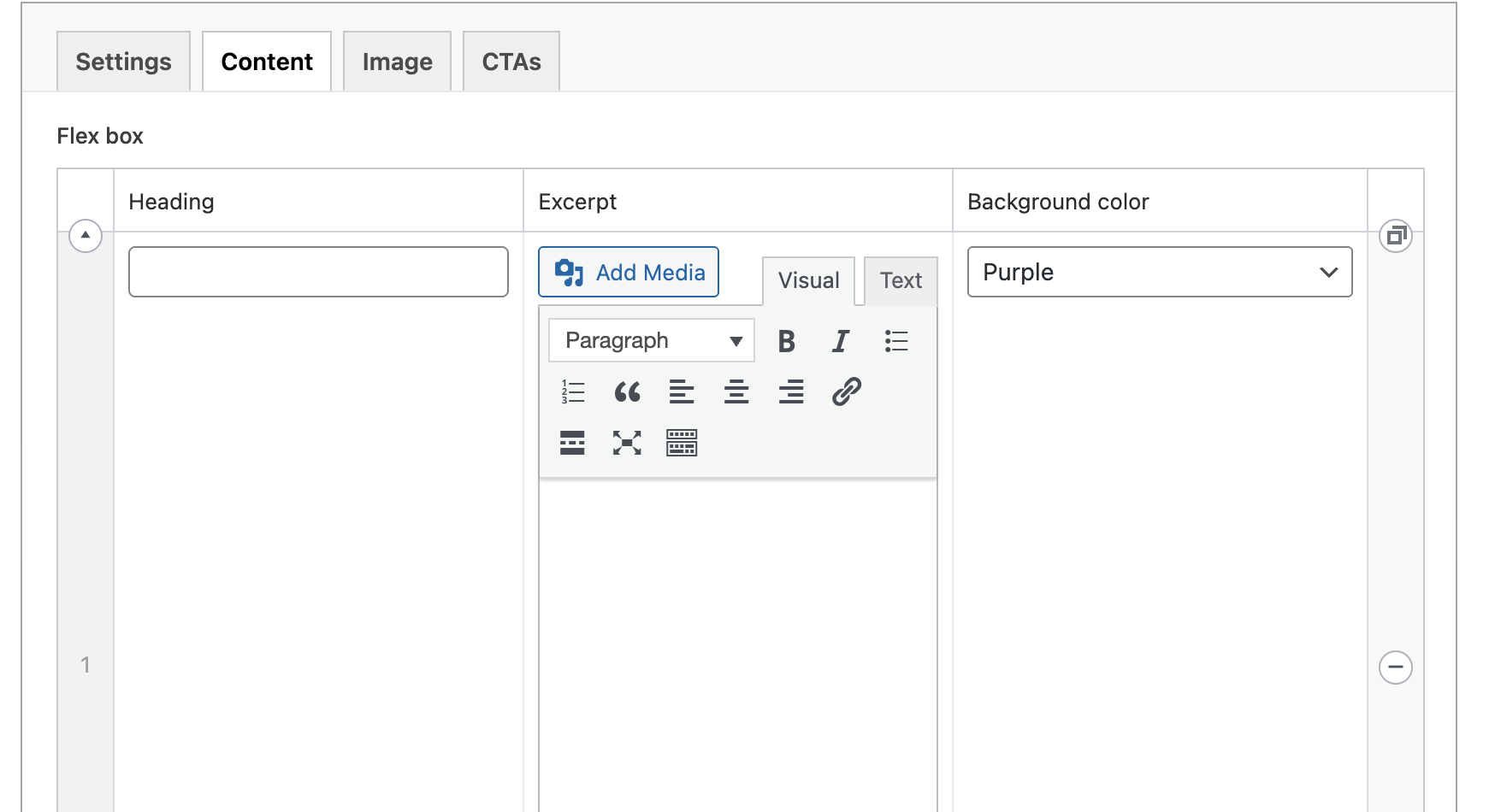
Content Editor Fields
General Content
- Heading:
- Description: The main title displayed above the grid of flex boxes.
- Usage: Enter a concise heading for the entire section.
- Requirement: Optional.
Flex Boxes (Repeater)
-
Description: A list of individual content boxes that will be displayed in a row.
-
Usage: Click "Add Flex Box" to create a new item. You can add multiple items to be displayed side-by-side.
-
Requirement: At least one item is required for the block to render.
-
Fields (per item):
- Heading:
- Description: The title for the individual content box.
- Usage: Enter a short, descriptive heading for the box.
- Requirement: Optional.
- Excerpt:
- Description: The main body of text for the box.
- Usage: Provide a brief description or key information.
- Requirement: Optional.
- Background Color:
- Description: Sets the background color for the individual box.
- Usage: Select a color from the predefined list (e.g.,
Purple,Pink,Teal). This helps visually separate the boxes. - Requirement: Optional. A default color will be used if none is selected.
- Heading:
Example Usage:
Steps:
- Add the block: Insert the Flex Box Block into your page.
- Add a General Heading:
- Heading: "Our Core Values"
- Add Flex Boxes:
- Click "Add Flex Box" to create the first item:
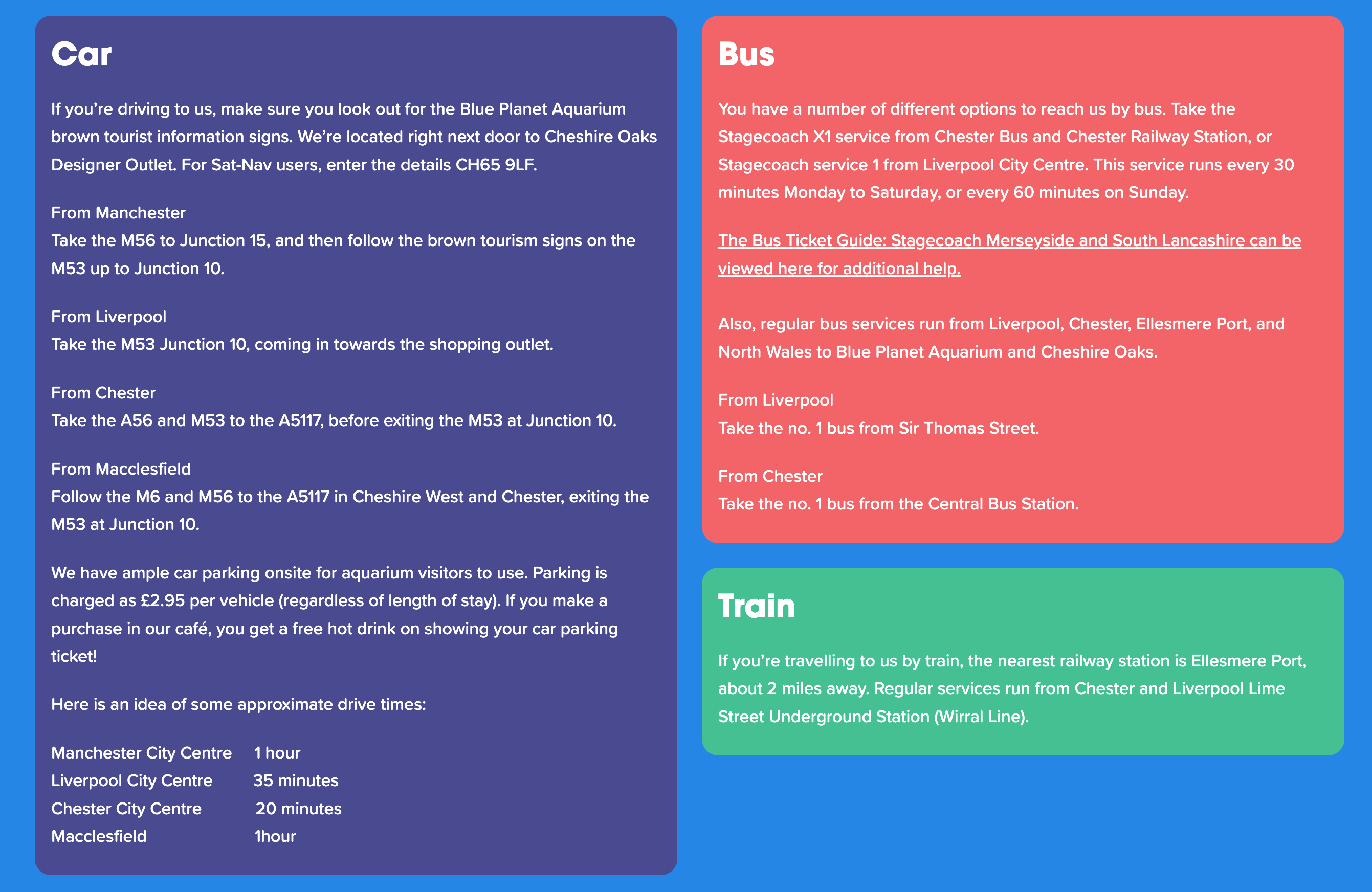
- Heading: "Car"
- Excerpt: "If you’re driving to us, make sure you look out for the Blue Planet Aquarium brown tourist information signs. We’re located right next door to Cheshire Oaks Designer Outlet. For Sat-Nav users, enter the details CH65 9LF.From Manchester, take the M56 to Junction 15, and then follow the brown tourism signs on the M53 up to Junction 10."
- Background Color: Select
Purple.
- Click "Add Flex Box" again for a second item:
- Heading: "Bus"
- Excerpt: "You have a number of different options to reach us by bus. Take the Stagecoach X1 service from Chester Bus and Chester Railway Station, or Stagecoach service 1 from Liverpool City Centre. This service runs every 30 minutes Monday to Saturday, or every 60 minutes on Sunday. "
- Background Color: Select
Pink.
- Click "Add Flex Box" for a third item:
- Heading: "Train"
- Excerpt: "If you’re travelling to us by train, the nearest railway station is Ellesmere Port, about 2 miles away. Regular services run from Chester and Liverpool Lime Street Underground Station (Wirral Line)."
- Background Color: Select
teal.
- Click "Add Flex Box" to create the first item:
- Save the Page: The block will now display a main heading followed by three colored boxes, each containing its respective title and text.
Result:
The Flex Box Block renders a clean, modern section with colored content boxes arranged horizontally. On smaller screens, these boxes will stack vertically to ensure readability. This creates a visually appealing and organized way to present grouped information.
Preview with image:
Editor preview:
Benefits:
- Visually Distinct: Uses background colors to create separation and draw attention to different pieces of content.
- Organized Information: Groups related items together in a structured and easy-to-scan format.
- Flexible Layout: The boxes automatically adjust their layout for different screen sizes (responsive).
- Simple to Use: The repeater interface makes it easy to add, reorder, or remove content boxes.
Conclusion:
The Flex Box Block is a simple yet effective tool for presenting information in a visually engaging and structured manner. It is perfect for feature lists, value propositions, or any content that can be broken down into distinct, digestible chunks.